Graphics, Part V:
And More Again! When Will It End?
Context-Sensitive Buttons
Your more sophisticated
Websites have navigation bars that change based on where you are. That
is, they're sensitive to the context they're in.
Wouldn't you like
your buttons to be sensitive?
For instance,
if you were using my woody little navigation bar and you were actually on
the grades page, the bar could change to look like this:
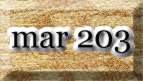

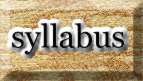
Okay, it's not
the most beautiful example, but you get the point. The yellow "grades"
button indicates that you are currently on the "grades" page.
To create these
context sensitive buttons, we return to the Frames panel.
- Open navbutton.png in Fireworks, if it's not already open.

- Your Frames Panel looks like this, with the three previously created frames:
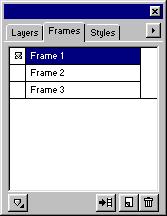
- Begin with Frame 1 (always a good place to start). Click on
 to select it. Then drag it down to the New Frame icon
  to duplicate it. The new frame will be inserted between the old Frames 1 and
2. This pushes all the frames down and renames them. So Frame 2 is now Frame
3 and Frame 3 is now Frame 4. Click through them to check it out.
to duplicate it. The new frame will be inserted between the old Frames 1 and
2. This pushes all the frames down and renames them. So Frame 2 is now Frame
3 and Frame 3 is now Frame 4. Click through them to check it out.
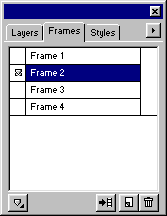
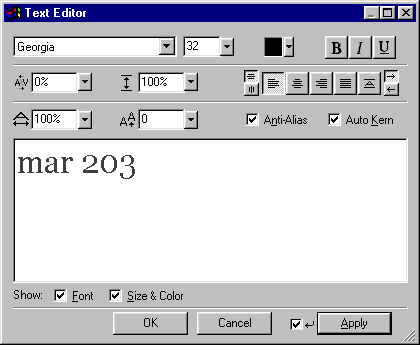
- With frame 2 selected, click twice on the text ("mar 203")
to bring up the Text Editor:
- Change the text to yellow or something very different from its old color.
- While you're on Frame 2, you may also change its background. As before,
the text will change on frame 2 of your image. But it still remains
the same on frame 1. Click the frames to see the images change for
yourself.
- With this new Frame 2 selected, Export the file. Do not use
Export Special this time. Regular Export will create a file
from the single, selected frame; which is what you want to do. Give it a name
that is different from the old "mar 203" button--like button_F01Selected.jpg
or something.
- Now, do steps 3-6 with the old Frame 2 ("grades",
in my example; currently Frame 3) and old Frame 3 ("syllabus,"
in my example). Be careful about the changes in frame names!
- Try
it: Redo
your Web page with the navigation bar you created before--substituting your
new context-sensitive button. Then create two more pages and put the appropriate
buttons in them.
Buttons That Change When
You Roll Over Them With the Mouse!
If you've gotten
this far and there's still classtime left, then you're ready to take your button
to the ultimate:
The
JavaScript Rollover Tutorial!
Caution: JavaScript
is involved! But Fireworks does simplify it greatly and you don't have to write
a line of code to do it.
Bibliography
- Sandee Cohen, Fireworks 2 for Windows and Macintosh (Berkely: Peachpit,
1999). A Visual Quickstart Guide.
- Lynda Weinman, Designing Web Graphics .3 (Indianapolis, IN: 1999).
Last revised:
May 30, 2000 8:26 AM
Comments: jbutler@ua.edu