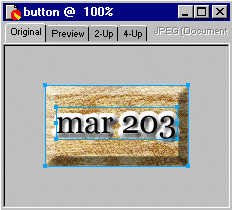
In Fireworks, buttons are a special type of symbols. To make one from the image we've previously created, choose Insert Menu > Convert to Symbol. This is similar to the New Symbol choice, but it may be used to create a symbol from previously constructed objects. (You could have created your button from scratch if you hadn't already made one.)
Type Button in the Name text box and be sure to select the Button
option for the Type.
The light green coloring of the image (below) indicates a slice object, which is necessary for rollovers; but you don't need to understand why at this point.
The arrow on the selection indicates that the rectangle is an instance
of the button. The instance's original, the button symbol is stored
in the document's library. If you pull up the Library Panel, you'll
see it listed.
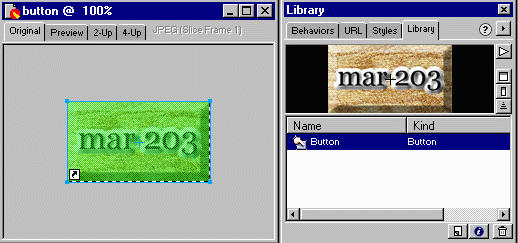
Double-click the button to open the Button Editor (or choose Modify
Menu > Symbol > Edit Symbol). With the Button
Editor, you create the graphics you want for each state of the
button that JavaScript will use. This requires some explanation--as Fireworks
provides in the Instructions box at the bottom of this dialog.
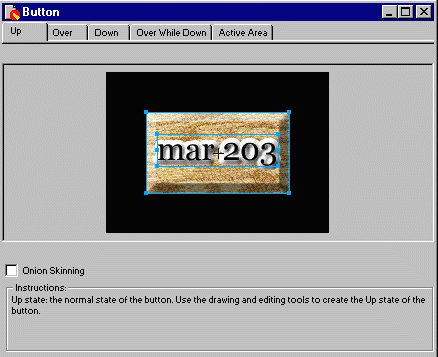
Note also the tabs in the Button Editor:

Up, Over, Down, and Over While Down are the different states
of this button. That is, they specify the different ways the button will
appear when the user takes specific actions:
- The Up State = the normal appearance of the button before the user does anything.
- The Over State = the appearance when the mouse cursor rolls over the image.
- The Down State = the appearance when the user clicks the image. It appears very briefly.
- The Over While Down State = the appearance after the user has clicked the image and while the cursor continues to be over the image.
Usually only the first two states are used. The other two are excessive, I'd say.
The way a rollover works, then, is the over state is swapped for the up state when the mouse rolls onto the image. JavaScript is a small programming language that automates this swapping, but you need not know JavaScript as Fireworks will write it for you.
To illustrate all of these button states, here's a little button that uses all four. Click it to see the down and over-while-down states; but you'll have to reload the page to see the up state again, if you do.

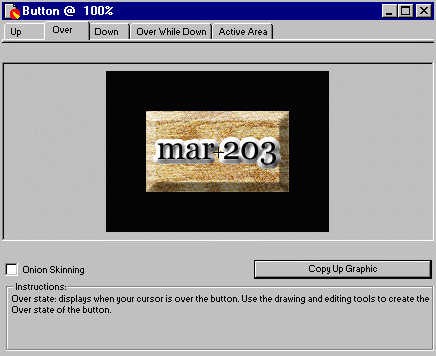
Use the Pointer tool to select the text in the Button Editor's Over state.
Go to the Effect Panel and click on FDrop Down Menu (it may
say "Flat" or it may not) and then choose Shadow
and Glow and Glow (again).
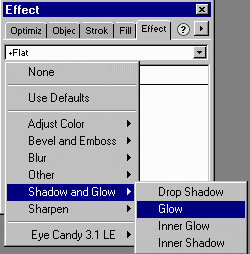
Give the text a nice, tasteful yellow glow.
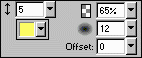
The result should be:
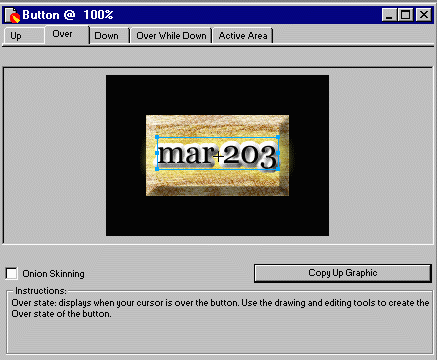
Compare the two "states" of the image you've just created (Up,
on the left; and Over, on the right).
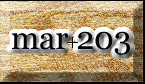
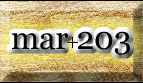
JavaScript will swap the one on the left for the one on the right--when
a user passes the mouse cursor over it. Click back and forth on the Up
and Over tabs and you'll see the effect in action.
It also wouldn't hurt at this stage to go to the Modify Menu and choose Trim Canvas to reduce the button to just its active area, but this isn't essential.
Choose Export from the File Menu.
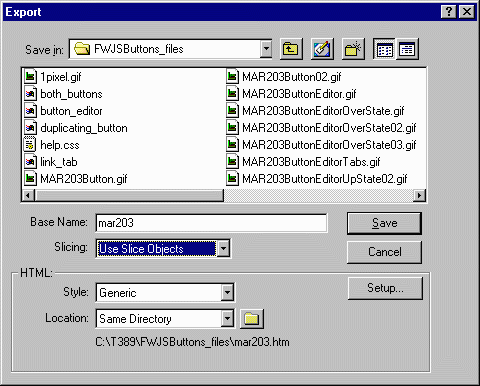
There are several important choices to make here.
- Base Name should be set to something descriptive. It will be
used to create the names of three files:
- An HTML file with your JavaScript in it, ready to be copy-and-pasted into any HTML document.
- A JPEG/GIF file for your button's Up state.
- A JPEG/GIF file for your button's Over state.
- Thus, a base name of mar203 will result in three files being generated:
- mar203.htm--which you may examine over here.
- mar203.jpg (the button's Up state)
- mar203_f2.jpg (the button's Over state)
- Slicing must be set to Use Slice Objects.
- HTML Style can be Generic, but let's set it to Dreamweaver 3 to make it easier to use later.
- Location determines where the above three files will be stored. Point it toward somewhere you can find again.
Now would be a good time to save your new, rollover-enabled file as buttonrollover.png.
If you examine the HTML source of mar203.htm or your own HTML file, you'll find several comments hidden in it that explain how to insert this button into another document. There are two main sections:
- One starting "Fireworks 3.0 Dreamweaver 3.0 target. Created Tue May 30 07:03:32 GMT-0500 (Central Daylight Time) 2000"
- Note: If we'd used the Generic setting for HTML Style (above), this section would say, "BEGIN COPYING THE JAVASCRIPT SECTION HERE"
- The other labeled "BEGIN COPYING THE HTML"
This is the JavaScript that Fireworks has created for you.
- The first part ("Fireworks 3.0 Dreamweaver 3.0 target. . . . ") contains a lot of JavaScript voodoo, which you can cut-and-paste into the top of an HTML document. The key is, it must be pasted within the <HEAD> tag.
- The second part ("BEGIN COPYING THE HTML") you can place
wherever you want that button to be. It resembles a regular image
SRC tag, but has some special JavaScript instructions added. Here's
the mumbo-jumbo Fireworks generated:
- <a href="http://www.tcf.ua.edu" onMouseOut="MM_swapImgRestore();"
onMouseOver="MM_swapImage('mar203','','mar203_f2.jpg',1);"
> <img name="mar203" src="mar203.jpg"
width="143" height="81" border="0"></a>
- Let's dissect it to see what's going on here. It's less complicated than it looks, but I'll understand if you skip this geek-speak part . . .
- The first part is just a standard <A HREF=> link tag:
- <a href="http://www.tcf.ua.edu"
- The last part is a standard <IMG> tag:
- <img name="mar203" src="mar203.jpg" width="143" height="81" border="0">
- The only difference from a regular <IMG> tag is the name="mar203" tag, which lets the browser know how to do the swapping.
- Only the middle part is new. That's wher the JavaScript goes
to work.
- onMouseOut="MM_swapImgRestore();" onMouseOver="MM_swapImage('mar203','','mar203_f2.jpg',1);
- And even this can be dissected.
- The following section tells the browser to swap in the
file mar203_f2.jpg when the user rolls the mouse cursor
over mar203.jpg--that is, onMouseOver.
- onMouseOver="MM_swapImage('mar203','','mar203_f2.jpg',1);
- The other section tells the browser to bring back mar203.jpg
when the mouse cursor is off (out of) the image.
- onMouseOut="MM_swapImgRestore();
- Simple, eh? See--you, too, can be a JavaScript programmer!
- The following section tells the browser to swap in the
file mar203_f2.jpg when the user rolls the mouse cursor
over mar203.jpg--that is, onMouseOver.
- <a href="http://www.tcf.ua.edu" onMouseOut="MM_swapImgRestore();"
onMouseOver="MM_swapImage('mar203','','mar203_f2.jpg',1);"
> <img name="mar203" src="mar203.jpg"
width="143" height="81" border="0"></a>
- You could start copying-and-pasting in a new document in Dreamweaver, but you can save some work if you . . .
Create a new Dreamweaver document and store it in the same folder as the JavaScript files.
Position the cursor in the document, where you want the rollover button
to appear and then choose Insert Menu > Media > Fireworks HTML.
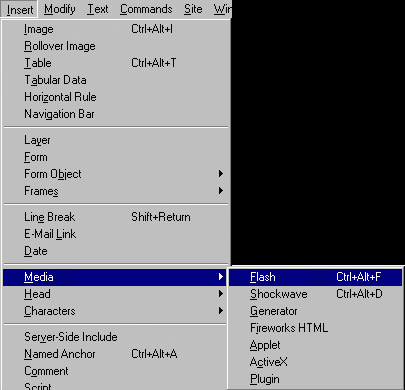
Browse to the folder containing your Fireworks-generated HTML file.
Create a new Dreamweaver document and store it in the same folder as the JavaScript files.
Select it and Dreamweaver will insert the images and the JavaScript code just where you want it--as I've done right here!
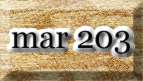
Check the source code of this page to see it in action.
