Graphics, Part V:
And Still More
Creating Lots of Buttons
The very coolest
thing about Fireworks graphics files is that they are extremely customizable
(is that a word?).
How come? Because
Fireworks files are vector graphics--unlike GIFs and JPEGs, which
are bitmap graphics. What's that mean?
Read Lynda Weinman's
concise but nerdy explanation in Designing Web Graphics.3 (pp. 62-63)
if you're really curious.
If you're not,
just plow ahead, but know that Fireworks is a vector graphics
program that is able to export bitmap graphics files. That's why
you export GIF/JPEGs instead of saving them when
you're using Fireworks. And if you save in Fireworks, you save
in the native Fireworks or PNG format.
In this section
we'll continue working with button.png, but make a copy o fit named navbutton.png.
- Wouldn't it be nice to have three similar buttons that we could use as a
navigation bar? Like this:



Fireworks makes it easy!
- Open button.png in Fireworks, if it's not already open.

And save it under a new name: navbutton.png (as in "navigation bar
button").
- The key to creating buttons with similar backgrounds/text is Frames.
(Refer back to the tutorial on animation
for a refresher course on frames.) If you check the Frames Panel of
navbutton.png you'll see that a single frame exists. (Also two layers
exist, but we're not going to mess with them.)
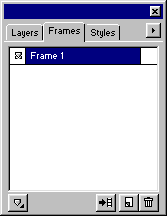
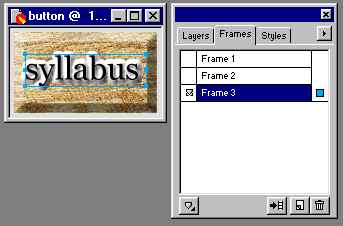
- Duplicate this frame twice. Dragging
 onto the New Frame icon
  should do the trick. Do it twice and your Frames Panel will look like this:
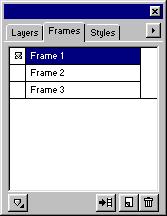
Click on each of the frames to see that you've got three identical frames.
- Click on
 to select it.
- With frame 2 selected, click twice on the text ("mar 203")
to bring up the Text Editor:
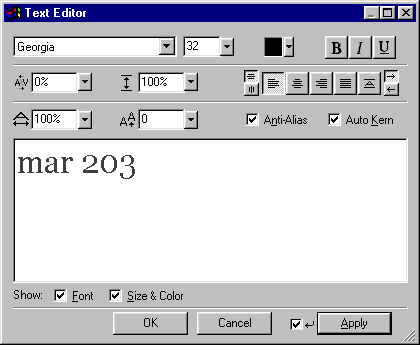
- Change your text to something else--like "grades"--and the text
will change on frame 2 of your image. But it still remains the same
on frame 1!
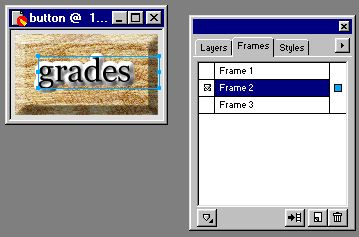
Click the frames to see the images change for yourself.
- Now, do the same with Frame 3--changing the text once again. I changed
mine to "syllabus."
- You're ready to Export your buttons, but there's a trick here. You
want the frames to be separate files when they're exported.
To get this result, you must choose Export Special from the
File menu, and then Layers/Frames to Files.
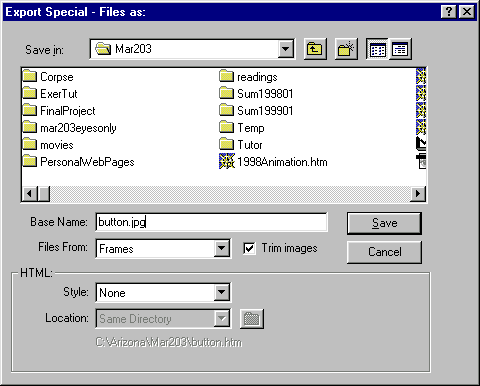
- This pops up the Export Special - Files as dialog box (see below).
In the Files From blank, choose Frames (not layers)--as you'll
be exporting three files from three separate frames.
Type in a Base Name for your files. All of your new files will begin
with this name. _F01 will be inserted into the first new file; _F02
into the second and so on.
Thus, my button.jpg will become
button_F01.jpg
button_F02.jpg
button_F03.jpg
'Course, I could rename them later if I wanted.
- The result of this Export Special? I'm glad you asked:
- My buttons are ready to be sucked into an HTML page--and by applying a little
linkage action to my <IMG> tags, I'll have me a fine navigation bar!
- Try
it: Create
a new Web page in Dreamweaver and pull your navigation bar into it. Share
it with the group when you're finished.
Could there possibly be
more?
Why
yes, yes there could . . .
Bibliography
- Sandee Cohen, Fireworks 2 for Windows and Macintosh (Berkely: Peachpit,
1999). A Visual Quickstart Guide.
- Lynda Weinman, Designing Web Graphics .3 (Indianapolis, IN: 1999).
Last revised:
August 6, 1999
Comments: jbutler@ua.edu